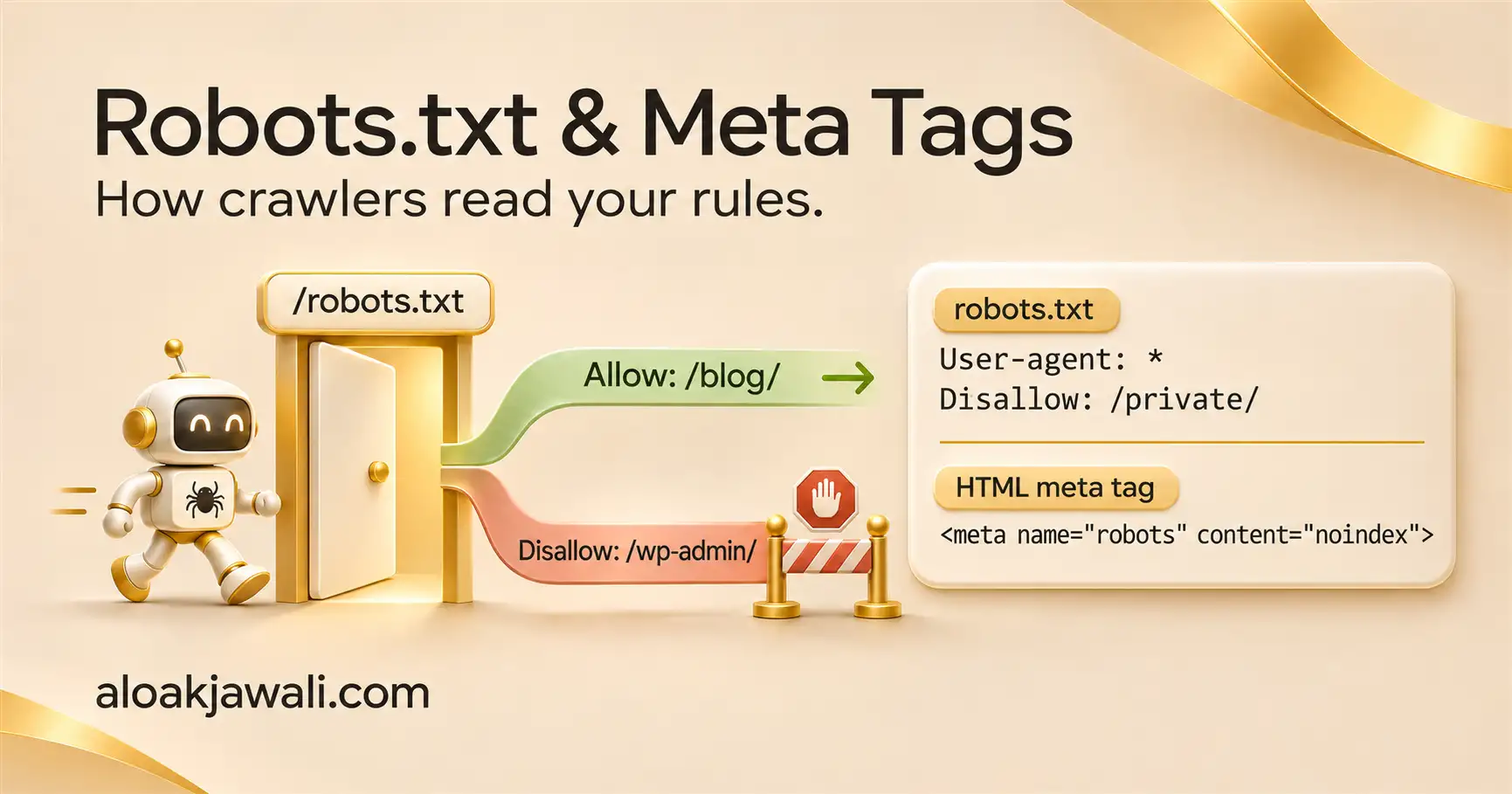
Every major search engine sends a crawler to your site, and the first thing most of them ask for is a single plain-text file: /robots.txt. That file decides which URLs those crawlers fetch. It does not decide which URLs appear in search results, and mixing up those two jobs is the most common robots mistake on the web.
This guide covers what a robots.txt file is, how traditional search engine crawlers like Googlebot and Bingbot read it, and how to block content the right way, using either robots.txt rules or meta robots tags. Every example can be copied as-is.
Key Takeaways
- A robots.txt file controls crawling. A meta robots tag or X-Robots-Tag header controls indexing.
- A URL blocked in robots.txt can still show up in Google if other sites link to it.
- To remove a page from search results, use
noindexand leave the page crawlable so the crawler can read the tag.- Googlebot ignores
Crawl-delay; Bingbot honors it.- Test every change before it goes live. One stray
Disallow: /can hide a whole site.
What is Robots.txt File?
A robots.txt file is a plain-text file at the root of your domain that tells crawlers which URLs they may request. Google describes it as a file that tells search engine crawlers which URLs the crawler can access on your site, used mainly to manage crawler traffic.
The format is old, but it’s now an official standard. RFC 9309, published in 2022, formalizes the Robots Exclusion Protocol that Martijn Koster first defined in 1994, adding definition language, error handling, and caching instructions.
A few rules about where the file lives:
- Root only. Crawlers don’t look for robots.txt files in subdirectories, so a file at
/folder/robots.txtis invalid. - One file per host. The rules apply only to the host, protocol, and port number where the file is hosted. Your
blog.example.comsubdomain needs its own file. - Size limit. Google enforces a 500 KiB size limit and ignores anything after that point.
One more thing worth knowing up front: robots.txt is a request, not a lock. The RFC states the rules are not a form of access authorization, and listing paths in the file makes them public and discoverable. Never use it to “hide” private folders. Use passwords or server-level access rules for that.
How Traditional Search Engine Crawlers Use Robots.txt
Before a well-behaved crawler fetches a page, it downloads your robots.txt file, finds the group that matches its name (its user-agent token), and follows those rules. If no group names it, it falls back to the User-agent: * group.
Here are the traditional search crawlers you’ll see most often in server logs:
| Crawler | Search engine | robots.txt token | Worth knowing |
|---|---|---|---|
| Googlebot (Smartphone and Desktop) | Google Search | Googlebot |
Both versions share one token |
| Googlebot-Image | Google Images, Discover | Googlebot-Image |
Controls image appearance in Google |
| Googlebot-News | Google News | Googlebot-News |
No separate user-agent string |
| Bingbot | Bing (also feeds Yahoo and others) | bingbot |
Honors Crawl-delay |
| DuckDuckBot | DuckDuckGo | DuckDuckBot |
Publishes its IP list |
| Applebot | Siri, Spotlight, Safari suggestions | Applebot |
Falls back to Googlebot rules |
A few behavior notes from the search engines themselves:
Googlebot. Google says its common crawlers always obey robots.txt rules when crawling automatically. Rules addressed to the Googlebot token affect Google Search, including Discover, plus Google Images, Google Video, and Google News.
Bingbot. Bing’s index reaches further than many people assume. Yahoo Search runs on Bing’s index and DuckDuckGo draws on it, so one rule addressed to bingbot affects visibility across several search products. Also note that if you write a specific group for the bingbot user agent, Bingbot ignores all the other directives in the file, so repeat any shared rules inside that group.
DuckDuckBot. DuckDuckGo states its crawler respects WWW::RobotRules and publishes its IP addresses, including a JSON version, which helps you confirm that traffic claiming to be DuckDuckBot is real.
Applebot. This one has a quirk. If your robots.txt doesn’t mention Applebot but does mention Googlebot, Apple’s crawler follows the Googlebot instructions. Applebot also doesn’t follow crawl-delay.
Robots.txt Syntax: The Lines You’ll Actually Use
Most robots.txt files use just four kinds of lines:
User-agent: *
Disallow: /private/
Allow: /private/press-kit.pdf

Sitemap: https://aloakjawali.io/sitemap_index.xmlUser-agent:names the crawler a group applies to.*means every crawler not named elsewhere.Disallow:a path the crawler shouldn’t request.Allow:an exception inside a disallowed path.Sitemap:the full URL of your XML sitemap. It sits outside any group.
Two special characters handle patterns: * matches any sequence of characters, and $ marks the end of a URL.
Which rule wins when two rules match?
This trips people up because order doesn’t matter. Under RFC 9309, the most specific match wins, meaning the rule with the most characters. It isn’t first-match or last-match. When an Allow rule and a Disallow rule are equally specific, the Allow rule should be used, and if no rule matches, the URL is allowed.
So in the example above, /private/press-kit.pdf is crawlable even though /private/ is blocked, because the Allow rule is longer.
Paths are also case-sensitive. Disallow: /Photos/ does not block /photos/.
Blocking With Robots.txt: Copy-Ready Examples
Use these when your goal is to stop crawling, for example to save crawl budget on filter pages, keep bots out of admin areas, or keep a staging site from being fetched.
1. Block an entire site (staging or dev only)
User-agent: *
Disallow: /
Never ship this on a live site. It’s the single most damaging line you can put in the file.
2. Block one folder
User-agent: *
Disallow: /checkout/
3. Block one folder but allow one file inside it
WordPress sites use this pattern by default:
User-agent: *
Disallow: /wp-admin/
Allow: /wp-admin/admin-ajax.php
4. Block one crawler only
User-agent: Googlebot-Image
Disallow: /client-photod/
Every other crawler still reaches /client-photos/.
5. Block URL parameters (faceted navigation, session IDs)
User-agent: *
Disallow: /*?sort=
Disallow: /*?sessionid=
6. Block a file type
User-agent: *
Disallow: /*.pdf$
The $ keeps this from matching a URL like /guide.pdf-download/.
7. Slow down Bingbot
User-agent: bingbot
Crwal-delay: 5
Bingbot accepts whole-number crawl-delay values from 1 to 30, each mapping to seconds between requests. Google is different: Googlebot does not obey crawl-delay, and the recommended way to slow it is returning HTTP 500, 503, or 429 status codes from multiple URLs. Use that only as a short-term fix.
8. A sensible WordPress starting point
User-agent: *
Disallow: /wp-admin/
Allow: /wp-admin/admin-ajax.php
Disallow: /?s=
Disallow: /search/

Sitemap: https://aloakjawali.io/sitemap_index.xml
Blocking With Meta Robots Tags: Examples
Use meta robots tags when your goal is to keep a page out of search results. The tag goes in the page’s <head>, and the crawler reads it when it fetches the page.
When Googlebot crawls a page and extracts a noindex tag or header, Google drops that page from search results entirely, even if other sites link to it. That’s the guarantee robots.txt can’t give you.
Keep a page out of all search engines
<meta name="robots" content="noindex">
Keep it out of results and don’t follow its links
<meta name="robots" content="noindex, nofollow">
Target Google only
<meta name="googlebot" content="noindex">
Google documents this googlebot-only form for blocking just its web crawlers. Other engines can still index the page.
Keep the page indexed but hide the snippet
<meta name="robots" content="nosnippet">
Limit snippet length to 160 characters
<meta name="robots" content="max-snippet:160">
Stop images on the page from being indexed
<meta name="robots" content="noimageindex">
Drop a page from results after a date (event pages, promotions)
<meta name="robots" content="unavailable_after: 2026-12-31">
Google says these rules can be combined in a comma-separated list or in separate meta tags, and they’re case-insensitive.
Blocking PDFs and images with X-Robots-Tag
Meta tags only work inside HTML. For PDFs, images, and video files, send the same directives as an HTTP header. Google confirms that any rule usable in a robots meta tag can also be sent as an X-Robots-Tag, and that’s the method to use for non-HTML resources.
Apache (.htaccess):
User-agent: *
<FilesMatch "\.pdf$">
Header set X-Robots-Tag "noindex, nofollow"
</FilesMatch>

Nginx:
location ~* \.pdf$ { add_header X-Robots-Tag "noindex, nofollow"; }
Robots.txt vs. Meta Robots Tag: Which Should You Use?
| Your goal | Use this | Example |
|---|---|---|
| Save crawl budget on filter or search pages | robots.txt Disallow |
Disallow: /*?sort= |
| Remove a page from search results | noindex meta tag, page left crawlable |
<meta name="robots" content="noindex"> |
| Remove a PDF or image from results | X-Robots-Tag header | X-Robots-Tag: noindex |
| Keep an entire staging site from being crawled | robots.txt plus password protection | Disallow: / |
| Hide a snippet but keep the ranking | meta tag | nosnippet |
| Slow down Bing | robots.txt | Crawl-delay: 5 |
The short version: robots.txt manages the crawler’s route; meta tags manage what ends up in the index.
The Mistake That Keeps Pages in Google: Disallow + Noindex
It feels like extra protection to block a page in robots.txt and add noindex. It does the opposite.
Google has to crawl a page to see its meta tags and HTTP headers. If robots.txt blocks the URL, Google’s crawlers can’t see the tag, and you have to edit robots.txt to unblock the page. Meanwhile, a page that’s disallowed in robots.txt can still be indexed if other sites link to it.
That’s how you end up with the “Indexed, though blocked by robots.txt” warning in Search Console: a bare URL in the results with no description, because Google knows the page exists but was told not to read it.
The fix is a two-step order of operations:
- Remove the
Disallowrule for that URL. - Keep (or add) the
noindextag, then request a recrawl in Search Console’s URL Inspection tool.
Once the page has dropped out of the index, you can put the Disallow rule back if you want to save crawl budget.
And for the record: putting a noindex rule inside robots.txt isn’t supported by Google. If you still have Noindex: lines in an old file, they’re doing nothing.
How to Edit Robots.txt and Meta Robots in Rank Math
Robots.txt. Rank Math creates a virtual robots.txt file you manage from the WordPress dashboard, so you don’t need a physical file in your root folder. Go to WordPress Dashboard → Rank Math SEO, turn on Advanced Mode in the top-right corner, open General Settings, and click Edit robots.txt.
If the editor is locked, check for an old file on the server first. A real robots.txt in your root folder can prevent Rank Math from editing it; removing that file through FTP or cPanel File Manager fixes the problem.
Meta robots, per post. Open any post or page, go to the Rank Math sidebar, and select the Advanced tab. Under Robots Meta you can check No Index, No Follow, No Image Index, and No Snippet, and set snippet and image preview limits. For site-wide defaults by post type, use Rank Math SEO → Titles & Meta.
WordPress itself. Double-check Settings → Reading too. When “Discourage search engines” is checked, WordPress adds Disallow: / to the virtual file and blocks every crawler from everything. It’s an easy box to forget after a site launch.
Test Your Robots.txt Before It Goes Live
A robots.txt file has no “undo” for the hours or days crawlers spend reading a bad version. Test first.
The free Robots.txt Validator lets you fetch your live file or paste a draft, then check it three ways:
- Syntax check flags errors, warnings, sitemap lines, and file size against Google’s 500 KiB limit.
- Crawler simulator tests any URL path as Googlebot, Googlebot-Image, Googlebot-News, Bingbot, YandexBot, or the
*default group, and shows which rule matched. - Templates give you starting files for WordPress and WooCommerce, plus a “block all” sample so you can see what a dangerous file looks like before it ever reaches your server.
It follows RFC 9309 matching, including longest-match precedence, * and $ wildcards, and case-sensitive paths, so the answer it gives you matches how Googlebot reads the same file.
A good habit: paste your new rules in, test your five most important URLs (home page, a top blog post, a category page, a product page, your sitemap), and only then save the change in Rank Math.
Frequently Asked Questions
Does robots.txt remove a page from Google?
No. It stops Google from crawling the page, but the URL can still be indexed from links on other sites. Use a noindex meta tag or X-Robots-Tag header, and leave the page crawlable so Google can read it.
Do all crawlers obey robots.txt?
Major search engine crawlers like Googlebot, Bingbot, DuckDuckBot, and Applebot do. Scrapers and malicious bots often ignore it, so block those at the server or firewall level instead.
Where should the robots.txt file go?
At the root of each host, such as https://aloakjawali.io/robots.txt. Each subdomain needs its own file.
Can I use robots.txt and meta robots tags together?
Yes, for different URLs. Use robots.txt for sections you don’t want crawled and meta tags for pages you don’t want indexed. Just don’t apply both to the same URL when your goal is removal.
How long does Google take to see robots.txt changes?
Google caches the file and rechecks it regularly. You can speed things up by requesting a recrawl of the file through Search Console’s robots.txt report.